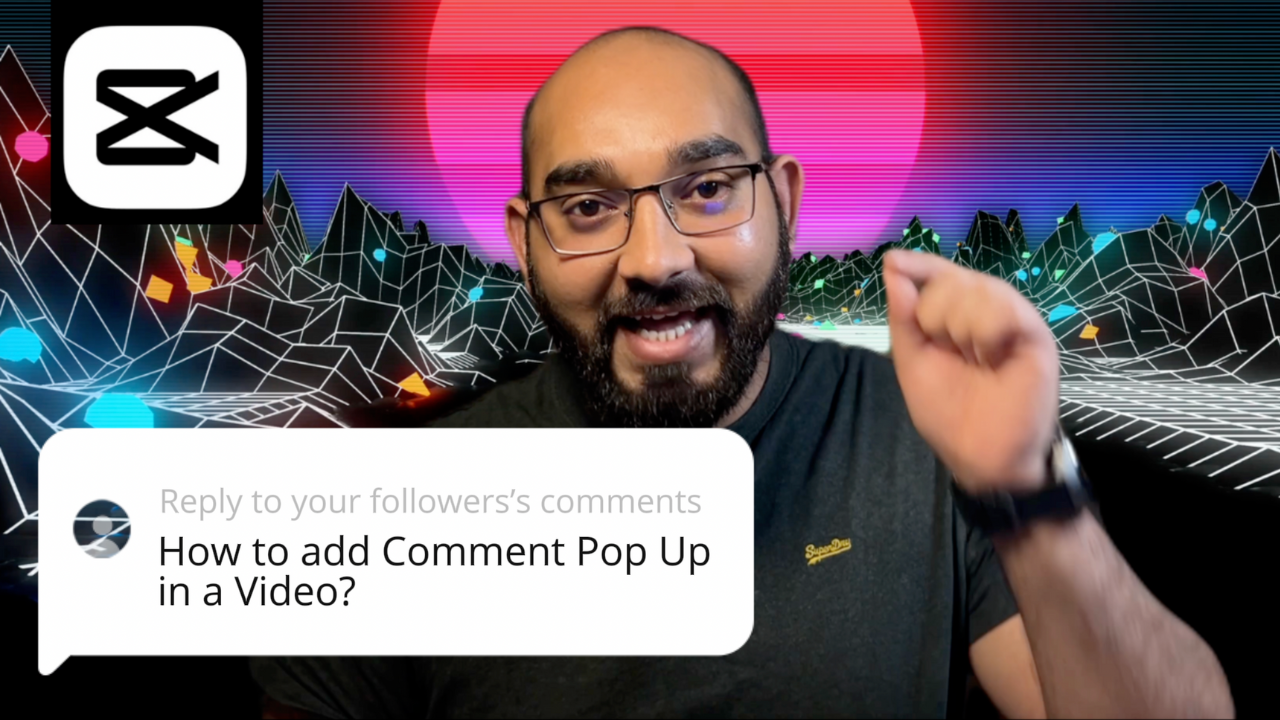
How to Add Message or Comment Popups in a Video Using CapCut
Social media videos feel more engaging when they look interactive. One of the easiest ways to achieve this is by adding message or comment popups — the kind you often see in Instagram Reels, TikTok videos, and YouTube Shorts.
These popups make videos feel conversational and modern, and the good news is: you can create them easily using CapCut, without any plugins, paid assets, or advanced editing skills.
In this guide, I’ll walk you through how to add message or comment popup effects in CapCut, step by step.
Why Message & Comment Popups Work So Well
Message-style popups instantly make a video feel more relatable and engaging. Creators commonly use them to:
- Highlight viewer comments
- Show conversations or reactions
- Emphasize key points in tutorials
- Improve storytelling flow
- Increase watch time and viewer engagement
That’s why you’ll often see this effect used in educational content, reels, short-form videos, and YouTube explainers.
What You’ll Need
To follow this tutorial, you only need:
- CapCut (Desktop or Mobile)
- A video clip (tutorial, talking head, or reel-style content)
- Text you want to show as a message or comment
Everything else is already built into CapCut.
Step-by-Step: Add Message or Comment Popups in CapCut
1. Add Your Video to the Timeline
Import your video into CapCut and place it on the timeline. Make sure the section where the popup should appear is clearly visible.
2. Create the Popup Text
Go to:
Text → Text Template → Message → Select Message or Comment popup
Then type your message or comment.
This could be a viewer comment, chat message, or a short reaction related to your video.
3. Animate the Popup
To make the popup feel natural, add a smooth animation such as:
- Fade in
- Slide in
- Scale in
You can also add a subtle exit animation so the popup disappears cleanly.
4. Time It Perfectly
Place the popup exactly where it makes sense in the video. Good timing ensures the effect feels professional rather than distracting.
Best Uses for Comment Popups
This effect works especially well for:
- YouTube tutorials
- Instagram Reels
- TikTok videos
- Educational content
- Storytelling & reaction videos
It’s a small detail that makes a big difference in how your video is perceived.
Watch the Full Video Tutorial
If you prefer a visual walkthrough, I’ve created a step-by-step video tutorial showing exactly how to add message and comment popups in CapCut.
👉 https://youtu.be/QO7yptji-Bg
Related CapCut Tutorials You May Like
If you found this tutorial useful, you may also enjoy these related CapCut guides:
- How to Sync Audio and Video in CapCut in One Click
- Fake Camera Movement Using Face Tracking in CapCut
- How to Add Motion Tracking in CapCut (Right Way)
- Put Text Behind a Person in CapCut
- Create Image Slideshows That Match Music Beats in CapCut
These tutorials focus on practical editing techniques that help your videos look more professional without complicated workflows.
Final Thoughts
Message and comment popups are small details that make a big impact. They add personality, boost engagement, and help your videos stand out on today’s social platforms.
The best part? You can create all of this for free using CapCut.
Follow me for on Medium for more CapCut tutorials, video editing tips, and content creation strategies.