How to Record Screen with OBS (Complete Setup for Beginners)
Screen recording is now a core skill for content creators, educators, freelancers, and online entrepreneurs. Whether you’re creating YouTube tutorials, online courses, software demos, or presentations, OBS Studio is one of the best free tools available.
In this complete guide, you’ll learn how to record your screen with OBS, understand Scenes, Sources, and Audio Mixer, and configure the best recording settings for high-quality results.
🎥 Watch the full video tutorial:
What Is OBS Studio?
OBS Studio (Open Broadcaster Software) is a free, open-source screen recording and live streaming software available for Windows, macOS, and Linux.
It allows you to:
- Record your screen and system audio
- Capture microphone input
- Add webcam, overlays, and multiple scenes
- Export high-quality videos for YouTube and courses
Despite being free, OBS offers professional-level control, which is why it’s widely used by creators worldwide.
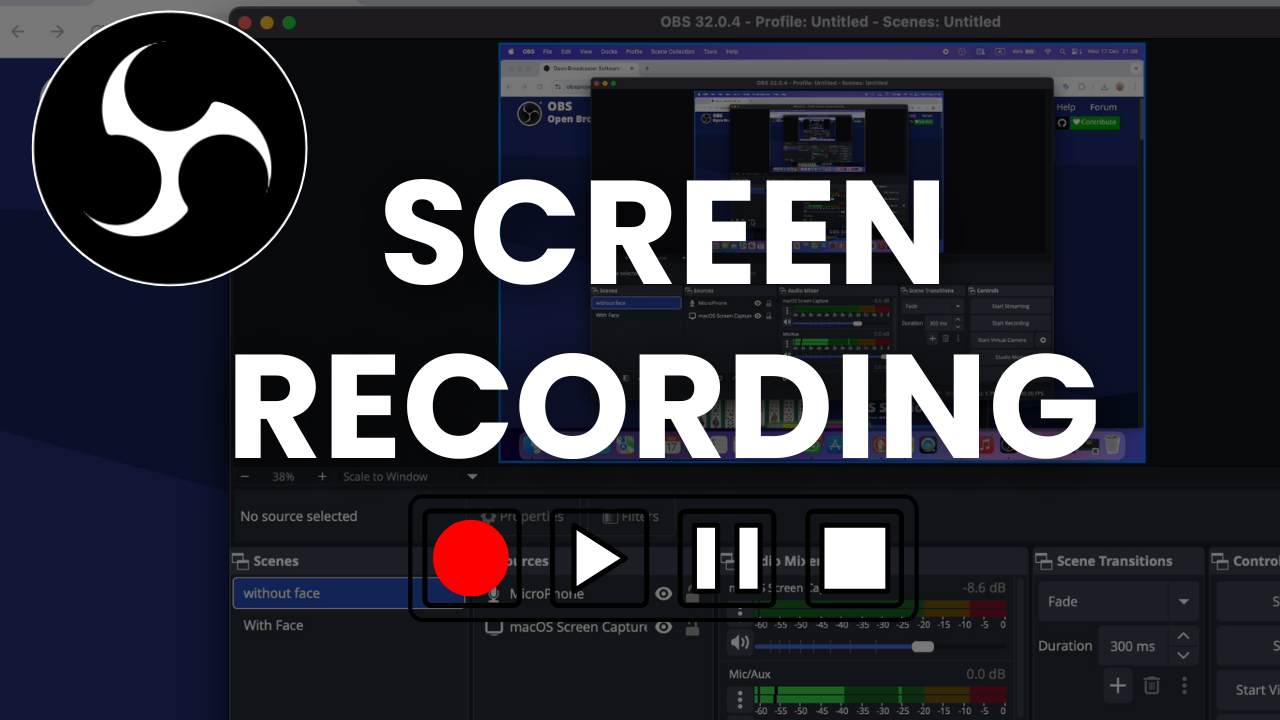
Understanding OBS Basics (Scenes, Sources & Audio Mixer)
Before recording, it’s important to understand how OBS works.
1. Scenes
A Scene is a layout that contains one or more sources.
Examples:
- Screen only
- Screen + microphone
- Screen + microphone+ webcam
You can create multiple scenes and switch between them while recording.
2. Sources
Sources are the elements you want to record inside a scene.
Common OBS sources:
- Display Capture – records your full screen
- Window Capture – records a specific application
- Audio Input Capture – microphone
- Audio Output Capture – system sound
- Video Capture Device – webcam
Choosing the right source ensures proper video capture without black screen issues.
3. Audio Mixer
The Audio Mixer controls all sound levels:
- Microphone volume
- Desktop/system audio
- Mute or monitor audio
Keeping audio levels balanced prevents distortion and improves video quality.
How to Record Screen with OBS (Step-by-Step)
Step 1: Install OBS Studio
Download OBS Studio and complete the installation.
Once opened, you’ll see the main interface with Scenes, Sources, Audio Mixer, and Controls.
Step 2: Create a New Scene
Click the “+” button under Scenes and name it something like Screen Recording.
Step 3: Add Screen Capture
Click the “+” button under Sources and select:
- Display Capture for full screen
- Window Capture for a specific app
Choose the correct screen or window and confirm.
Step 4: Configure Audio
Make sure:
- Mic/Aux is set to your microphone
- Desktop Audio is enabled
Adjust volume levels so they stay in the green/yellow range.
Step 5: Set Recording Quality
Go to Settings → Output → Recording:
- Format: MP4 or MKV
- Encoder: Hardware (if available)
- Quality: High Quality
Then go to Settings → Video:
- Base Resolution: Your screen resolution
- Output Resolution: 1920×1080 (recommended)
- FPS: 30 or 60
Step 6: Start Recording
Click Start Recording, perform your actions, then click Stop Recording.
Your video will be saved automatically.
Common OBS Screen Recording Problems (And Fixes)
Black Screen
- Use Display Capture instead of Window Capture
- Run OBS as administrator (Windows)
No Audio
- Check microphone selection
- Enable Desktop Audio
- Monitor audio levels
Lag or Frame Drops
- Lower output resolution
- Reduce FPS
- Use hardware encoder
Edit OBS Recordings with CapCut (Free Course)
After recording, editing is essential to make your video engaging.
I’ve created a free CapCut video editing playlist covering:
- Motion & camera tracking
- Auto face blur
- Audio syncing
- Animations and effects
- YouTube & Shorts editing
🎬 CapCut Video Editing Course Playlist:
https://www.youtube.com/playlist?list=PLQOGKy2nPhxk8k3okWmnxofM0lZXACnqW
Need Professional Help?
If you don’t want to spend time setting up OBS or editing videos yourself, you can hire experienced professionals to handle everything for you.
👉 Get professional video editing, OBS setup, or YouTube help on Fiverr:
https://rafys.net/fiverr
This is a great option if you want fast, polished results without the learning curve.
Final Thoughts
OBS Studio may look complicated at first, but once you understand:
- Scenes
- Sources
- Audio Mixer
Screen recording becomes simple and powerful.
If you’re serious about creating high-quality screen recordings, mastering OBS is a skill that will pay off long-term.
📺 Watch the full OBS setup tutorial