How to Speed Up or Slow Down a Specific Part of a Video in CapCut
If you’re editing videos for YouTube, TikTok, Instagram Reels, or any short-form platform, knowing how to adjust video speed is essential. With CapCut, you can easily speed up or slow down full or only a specific portion of your clip — and in this guide, I’ll walk you through the complete process.
This blog post is based on my latest YouTube tutorial.
You can watch the full video here:
What Is Video Speed Control?
Video speed control allows you to modify how fast or slow your footage plays. With CapCut, you can apply speed changes to:
- Highlight important actions
- Create dramatic slow-motion effects
- Add energy with fast-motion clips
- Smooth out transitions
- Improve pacing and storytelling
And the best part? You can apply speed changes to just one part of a clip — not the entire video if you don’t need it!
Step-by-Step: How to Edit Speed for Only Part of a Video
1. Import Your Video in CapCut
Open CapCut and create a new project. Add the video clip you want to edit.
2. Identify Where You Want to Change Speed
Play your video and pause at the exact moment where you want the speed change to start.
3. Split the Clip
Tap Split to cut your video at the selected point.
Do the same at the point where you want the effect to end.
Now the middle section is isolated for speed adjustment.
4. Adjust Speed
Select the split section.
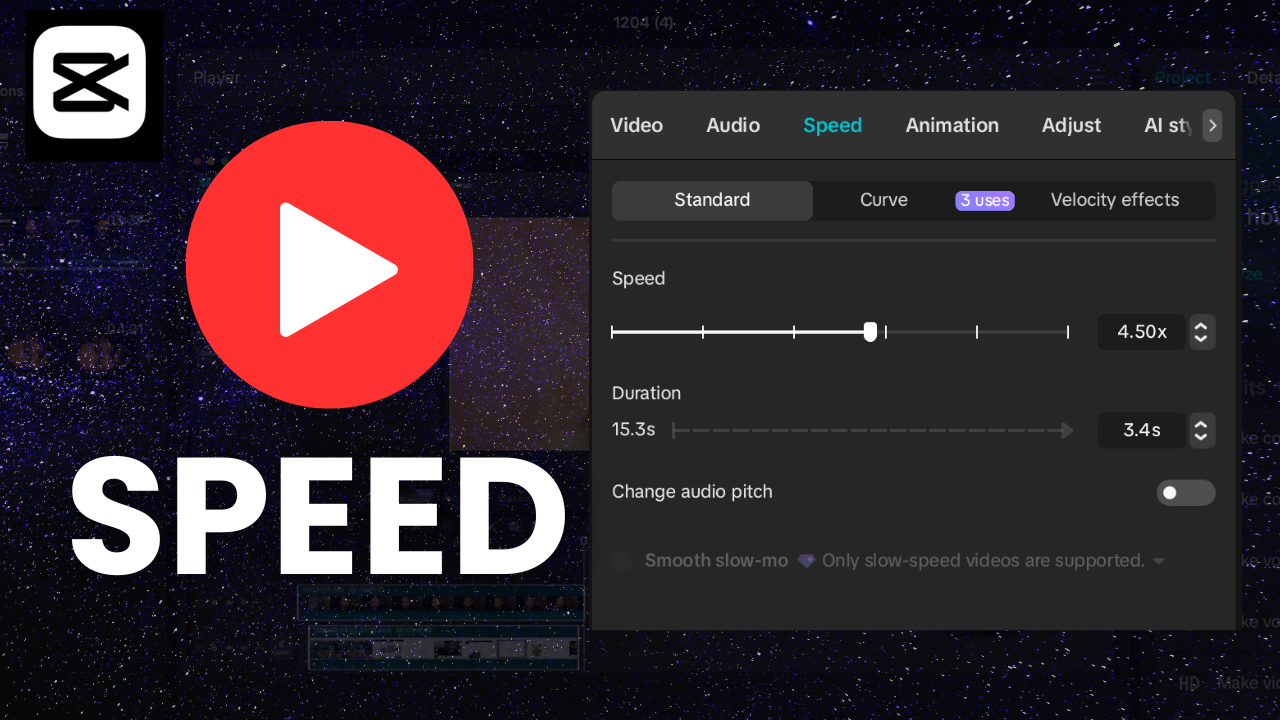
Tap Speed → choose Normal or Curve.
- Normal → simple speed-up or slow-down
- Curve → advanced, smooth speed transitions
Slide the speed bar to increase or decrease playback speed.
5. Review & Fine-Tune
Play the full clip to ensure the speed changes feel natural.
CapCut automatically blends the transitions, but you can adjust further if needed.
Best Practices for Speed Editing in CapCut
Use these tips to make your edits look more professional:
- Keep slow-motion above 0.5x to avoid choppy playback
- Use Curve Speed for cinematic slow and fast transitions
- Apply speed changes sparingly
- Match speed changes with beats for short-form content
- Avoid overshooting fast motion — it can ruin pacing
Final Thoughts
CapCut makes it extremely easy to control the speed of any section of your video. Whether you’re editing long-form tutorials or short-form content, mastering speed control helps you create more engaging and professional-looking videos.
👉 Other CapCut Tutorials:
How to Zoom In on Part of a Video and Zoom Out in CapCut
How to Blur Multiple Moving Faces at Once in CapCut?
The Right Way to Do Motion Tracking in CapCut (Complete Guide for Beginners)
👉 CapCut Video Editing Playlist: https://www.youtube.com/playlist?list=PLQOGKy2nPhxk8k3okWmnxofM0lZXACnqW
Keep an eye on the playlist, since I am working on new videos – there should be more for you to learn from!